How to Provide Liquidity and Sell USDC
How to provide liquidity on ZKP2P.
Step 1: Navigate to ZKP2P
Visit https://peer.xyz in your browser.
Step 2: Check Current Market Rates
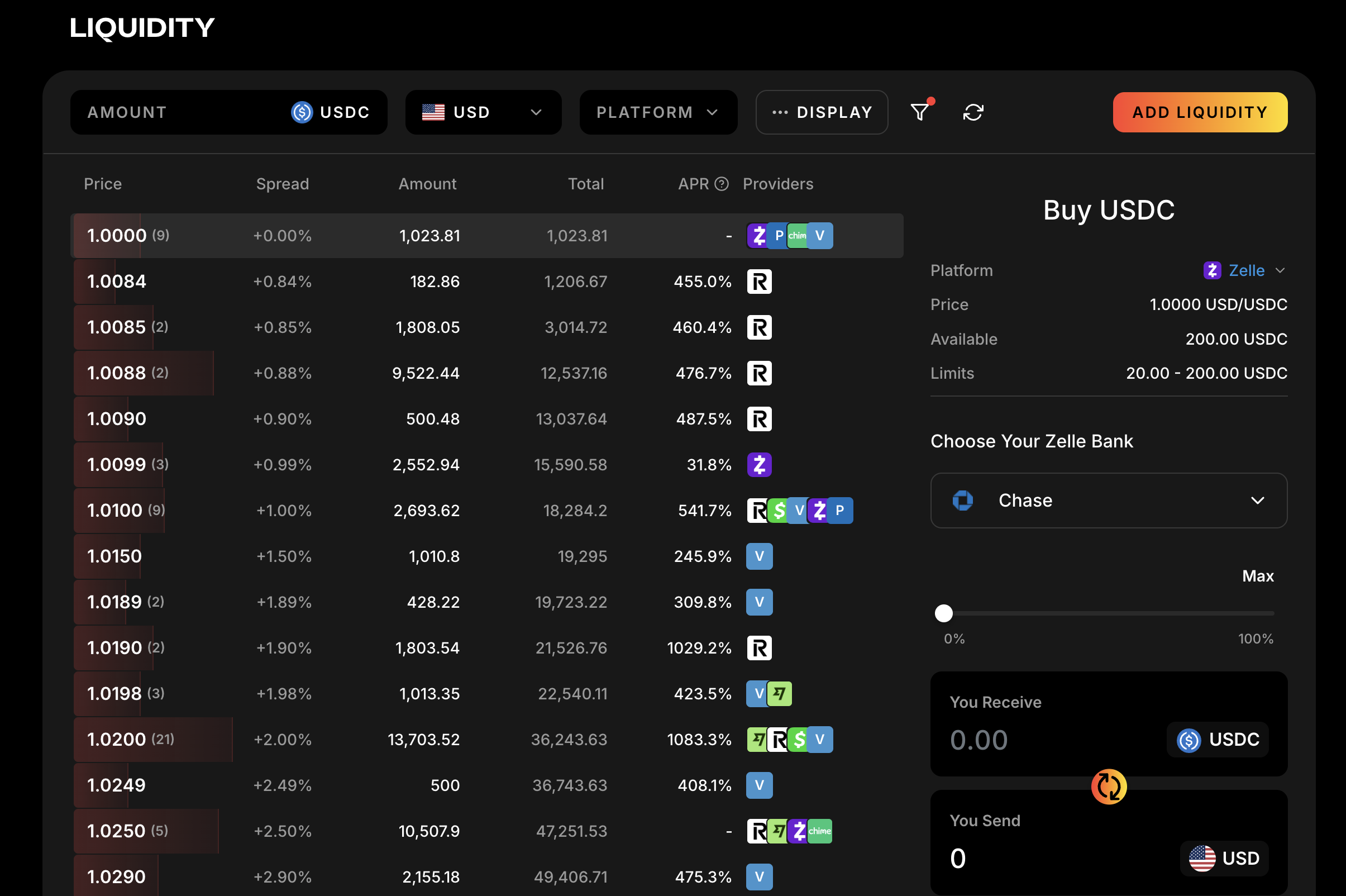
- Click on the Liquidity tab in the main navigation bar
- Review current spreads and rates for the currencies you're interested in
- Pay attention to available liquidity and limits for each option
Step 3: Add Liquidity
- Click the add liquidity button on the top right hand side of the Order Book
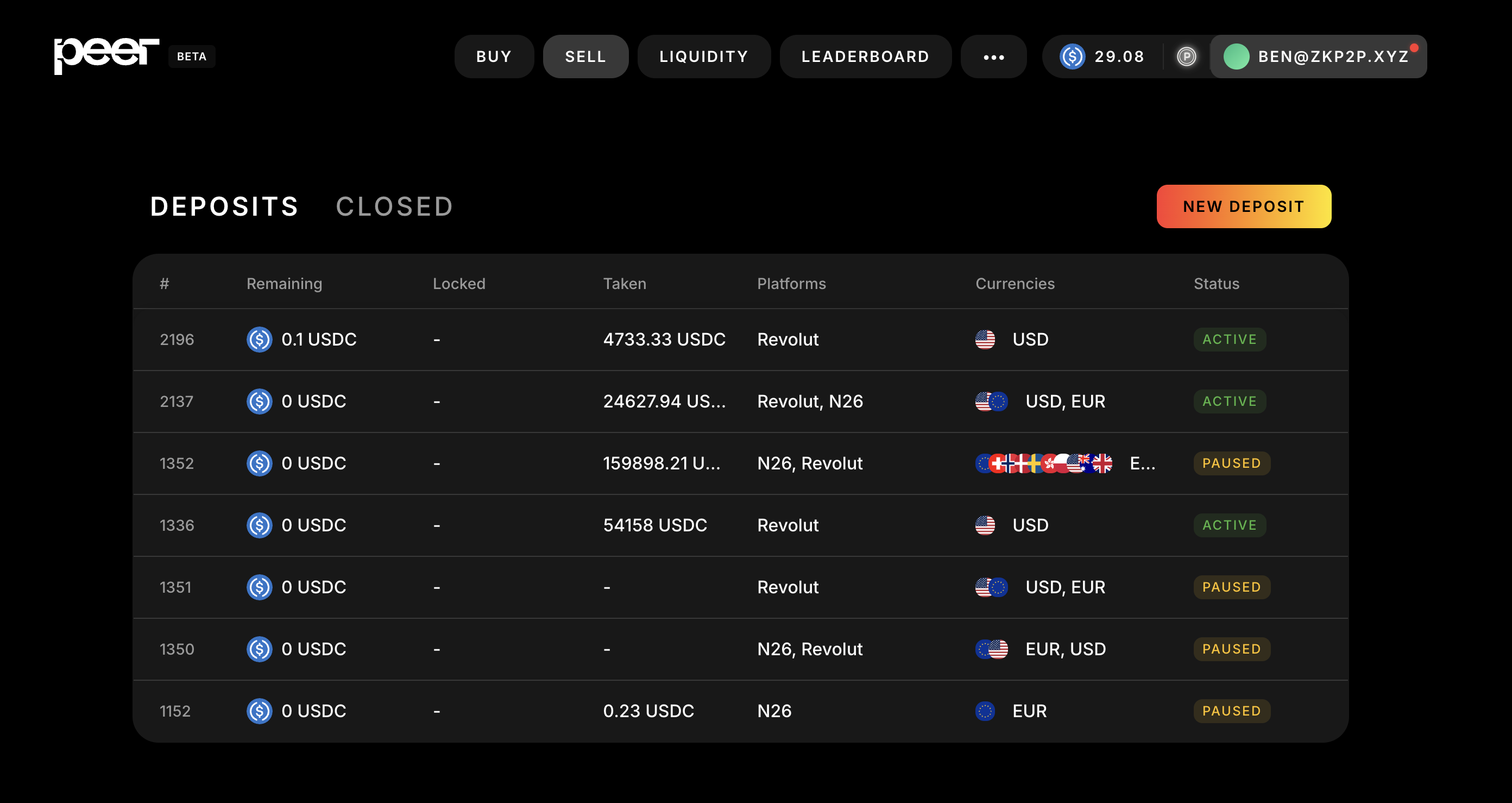
You can also click the Sell button on the toolbar
Step 4: Connect
- The platform will prompt you to connect your wallet
- Select your preferred wallet (Rabby, MetaMask, etc.) or log in via email, Twitter, or Google
- Approve the connection request in your wallet
Step 5: Fund Account with USDC on Base
- Ensure you have sufficient USDC tokens on the Base Network by checking in the top right hand corner.
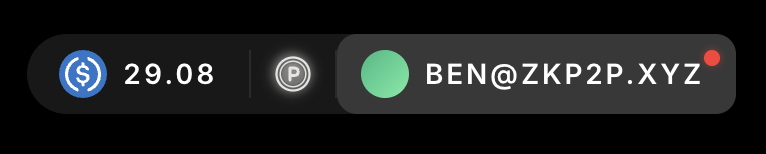
- If you don't have enough USDC, see the guide to depositing from any chain.
Step 6: Create New Deposit
- Click the New Deposit button
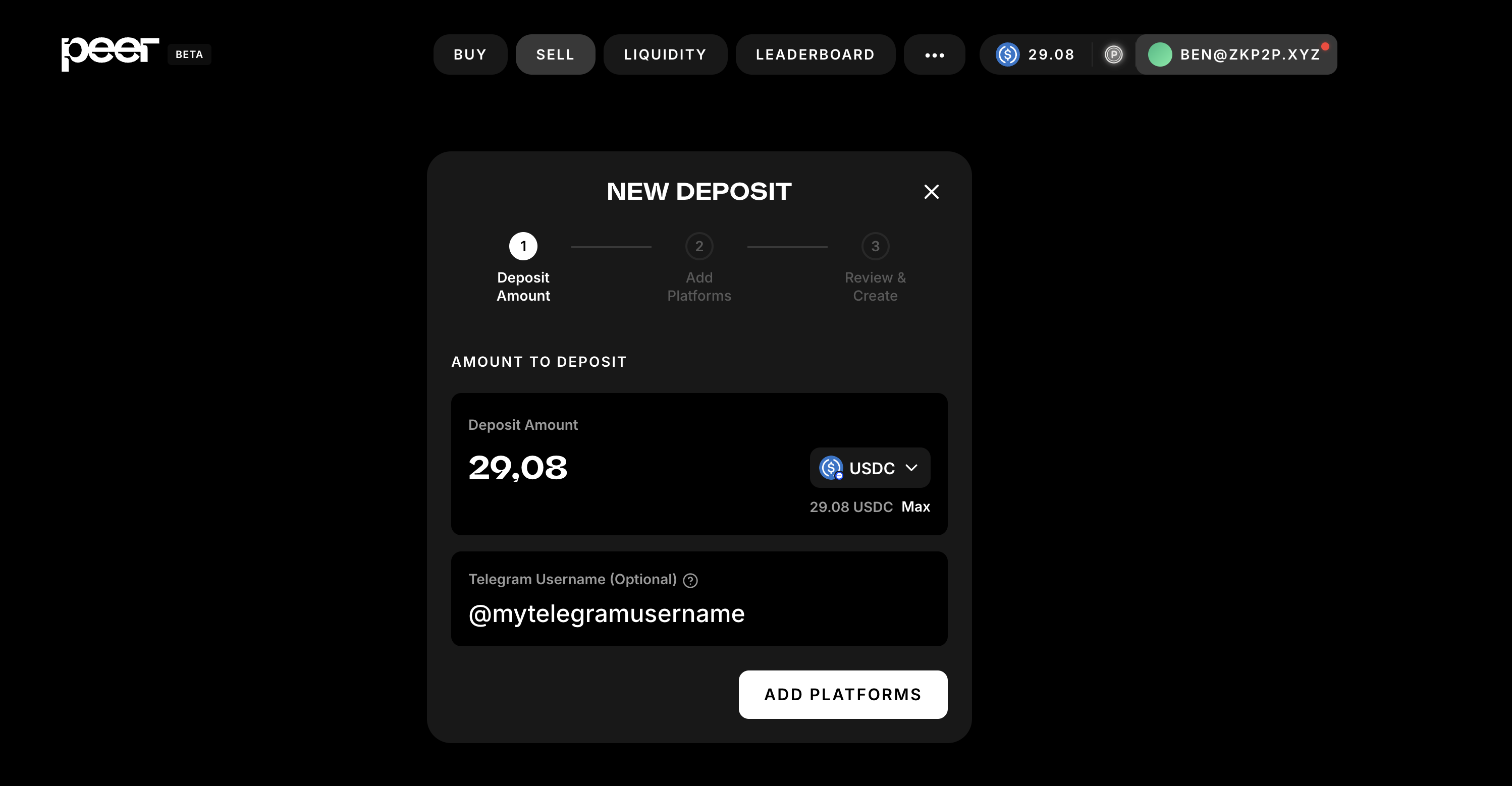
Step 7: Deposit USDC to Sell
- Click Max to deposit your full USDC balance or type a custom amount
Step 8: Select Primary Payment Platform
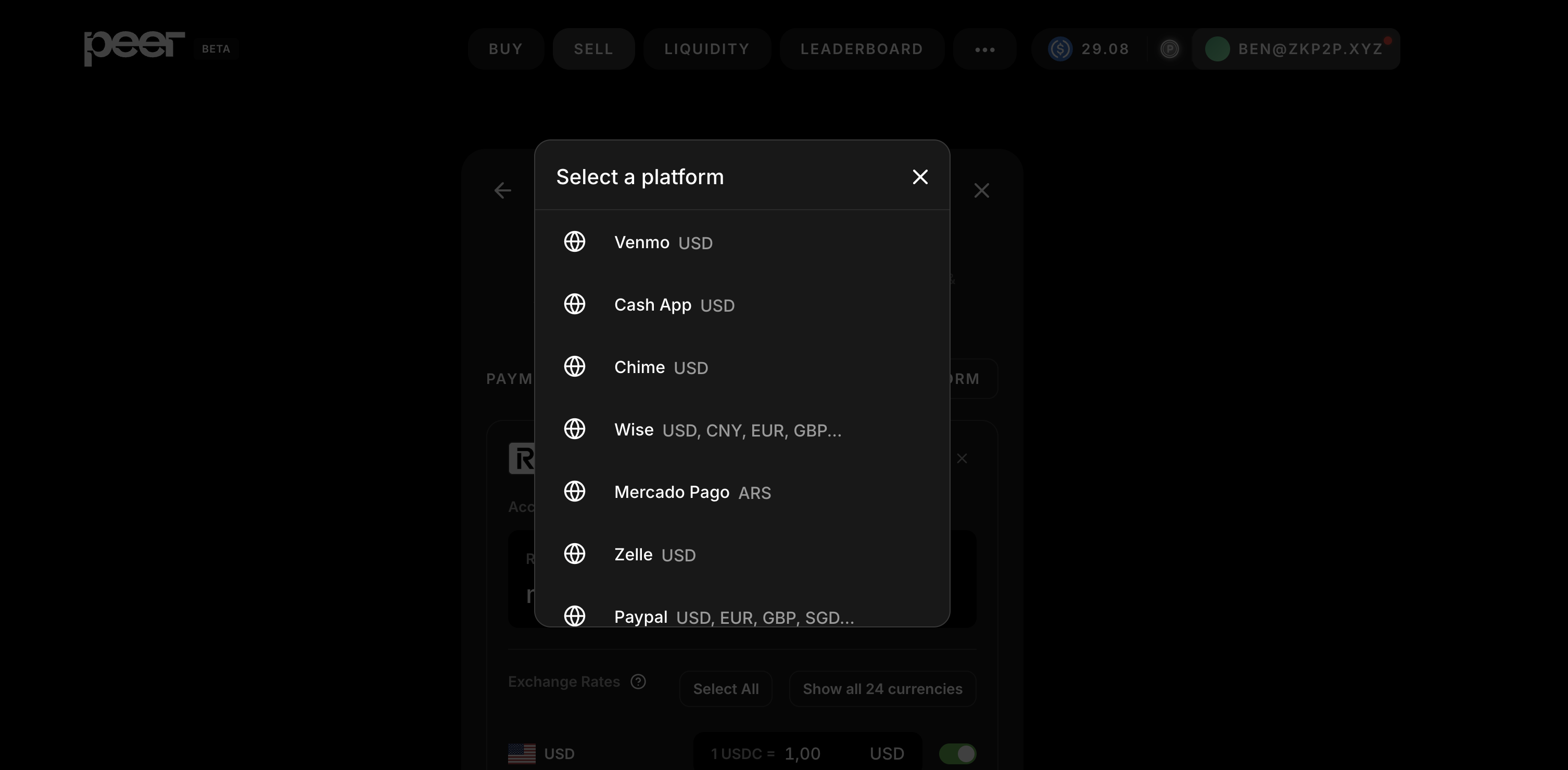
Choose your preferred platform from the dropdown:
- Venmo (USD Only)
- Cash App (USD Only)
- Zelle (USD Only)
- Revolut (Multi Currency)
- Wise (Multi Currency)
- Mercado Pago (ARS Only)
- PayPal (Multi Currency)
- Monzo (GBP Only)
- N26 (EUR Only)
- Alipay (CNY Only)
- Chime (USD Only)
- Luxon (USD, EUR, GBP)
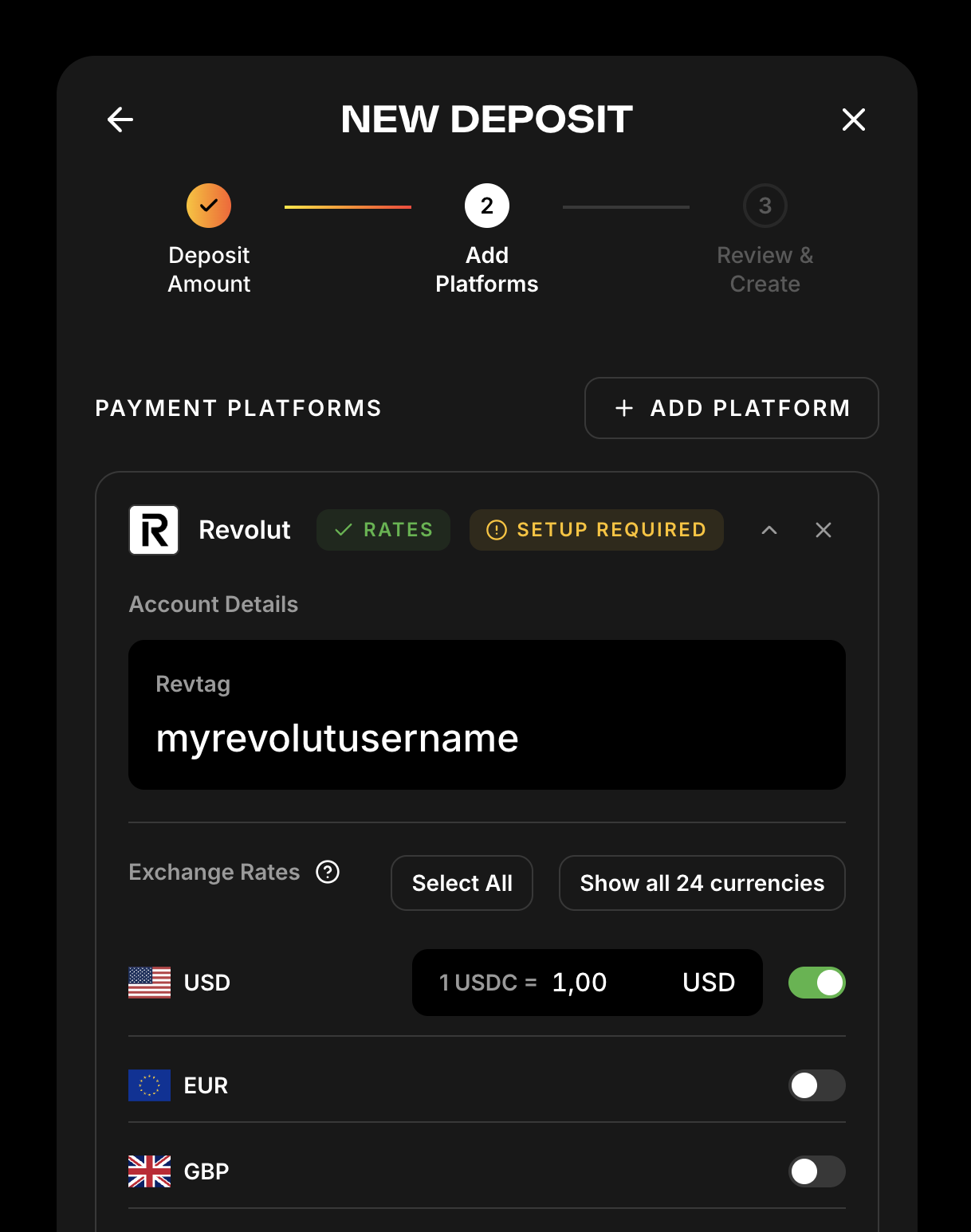
Step 9: Enter Payee Details
Enter your username/account details for the selected platform:
- Venmo Username
- Cash App Cashtag
- Zelle Email
- Revolut Revtag
- Wise Wisetag
- Mercado Pago CVU
- PayPal.me Username (e.g.
yourusername, omit thepaypal.me/prefix) - Monzo.me Username
- N26 IBAN
- Alipay ID
- Chime $ChimeSign
- Luxon Email
🔍 Double-check accuracy — these details are how buyers send you money.
PayPal requires identity verification through the PeerAuth browser extension (v0.4.14+). When you select PayPal, you will be prompted to complete extension-based verification before your deposit goes live. This is the same flow used for Wise. Enter your PayPal.me username (no paypal.me/ prefix) — maker identity is now keyed off the normalized PayPal.me username, not your email.
Deposits must use a personal PayPal account. PayPal Business accounts cannot register as makers — extension registration fails because Business accounts redirect to a different page during PeerAuth verification.
Note: Buyers (takers) CAN pay you from a PayPal Business account — they pick "Business" in the "PayPal account type" selector at verification time. This restriction only affects the maker/deposit side.
Step 10: Set Exchange Rates
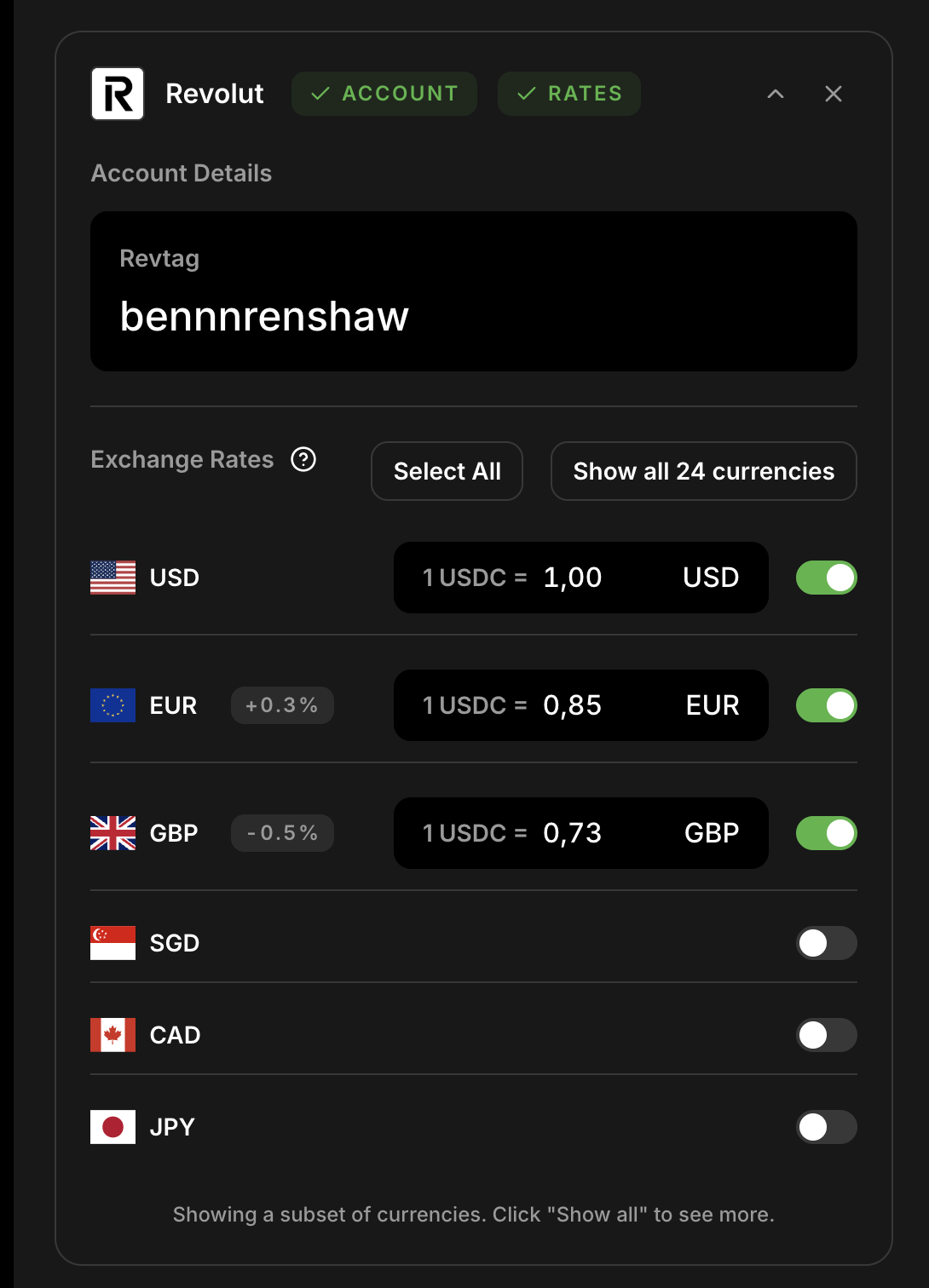
- Enter how much you want to sell your USDC for in each currency
- Adjust based on what you observed in Step 2
- You can see your percentage spread in the middle column
- Green is above market rate, Grey is close to market rate, and Red is below market rate.
💡 Consider:
- Market demand
- Competitive rates
- Desired profit margin
View the guide on optimal currency conversion rates for more tips.
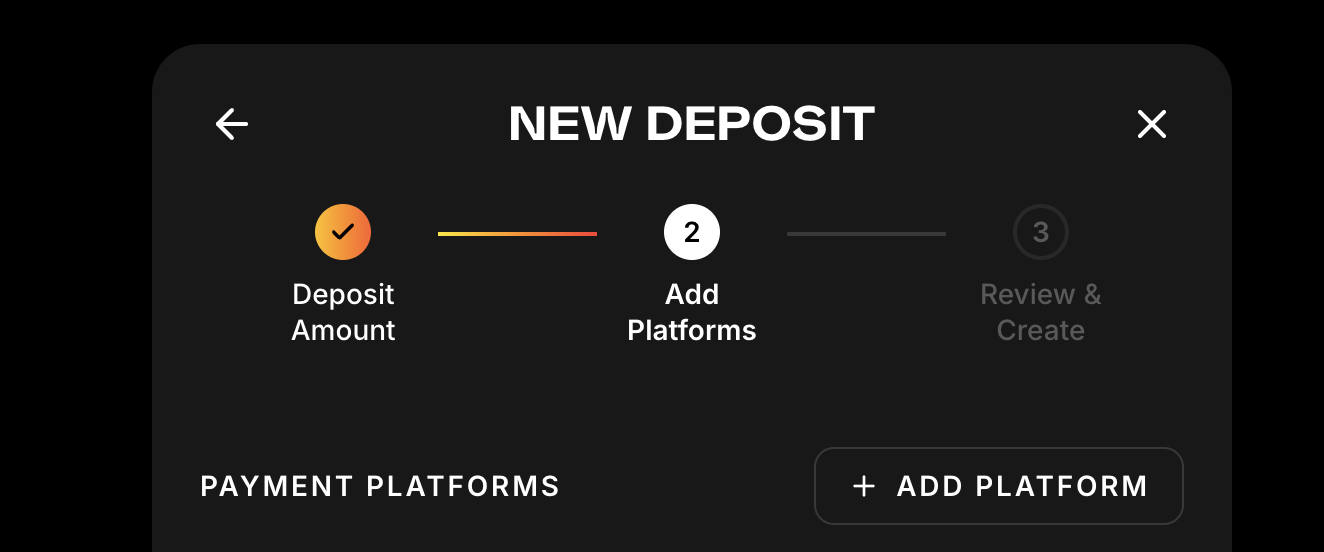
Step 11: Add Secondary Payment Platform (Optional)
- Click Add Payment in the top right hand corner, if you want to accept multiple payment methods
- Repeat Steps 8–10 for the new platform
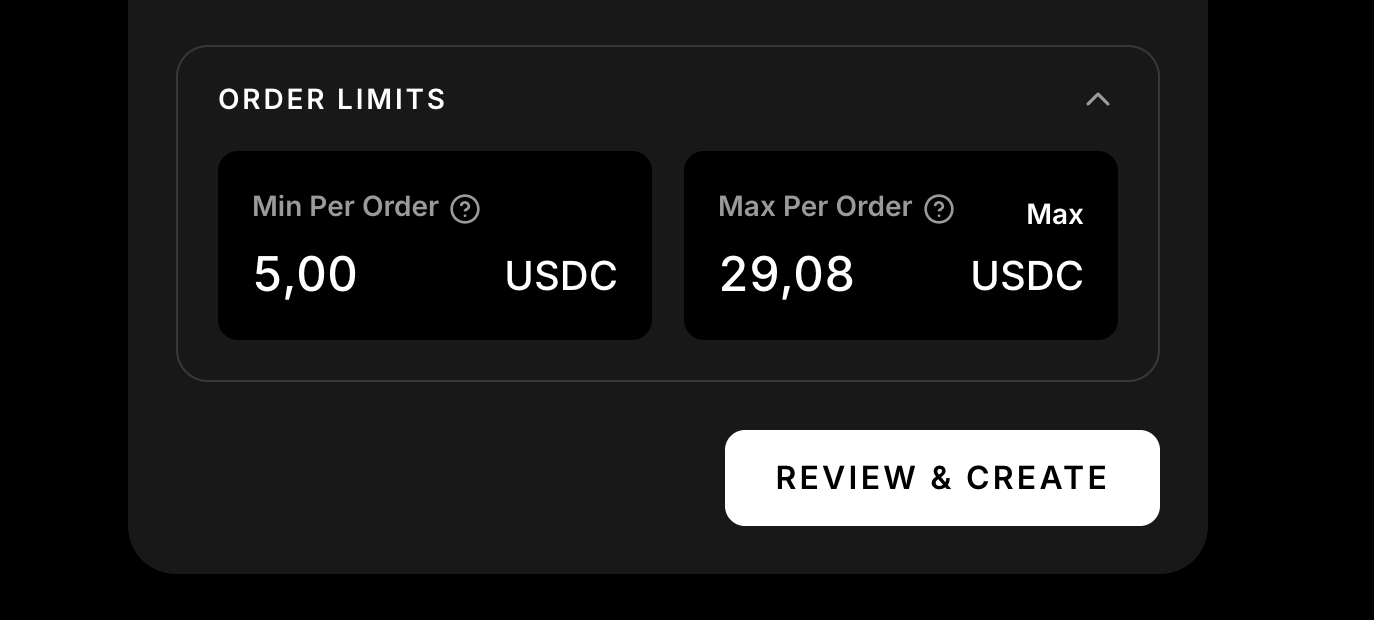
Step 12: Configure Order Limits (Optional)
Default order limits are applied automatically:
- Deposits of 101 USDC or less set the minimum order to roughly 5% of the deposit
- Deposits above 101 USDC set the minimum order to 101 USDC
- The maximum order always defaults to the full deposit amount
To override either limit, click Order Limits and enter your own values.
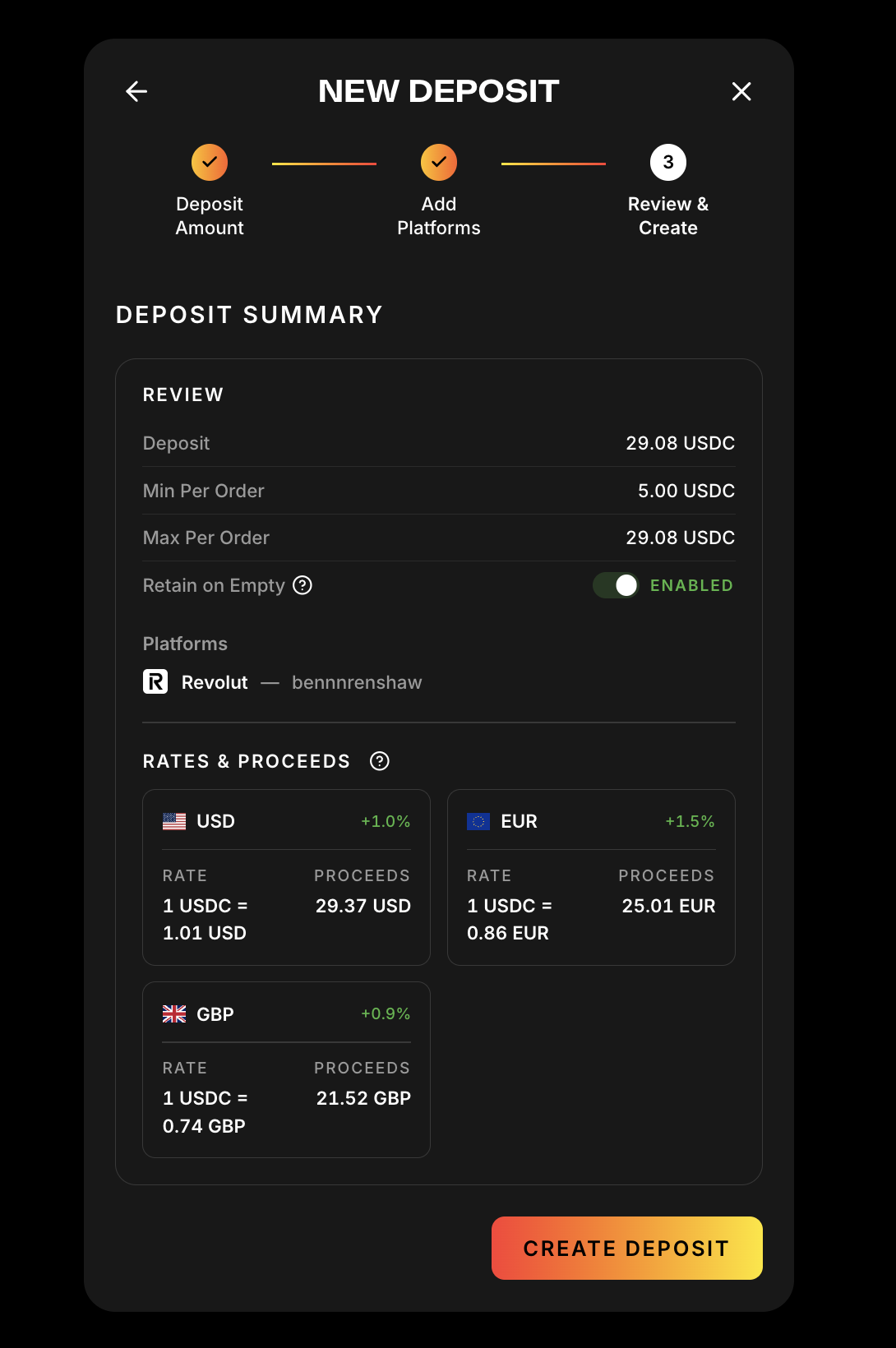
Step 13: Review your details
- Are my tags correct?
- Are my spreads what I expected?
- What proceeds can I expect from providing liquidity?
If all details are correct you can continue with your transaction!
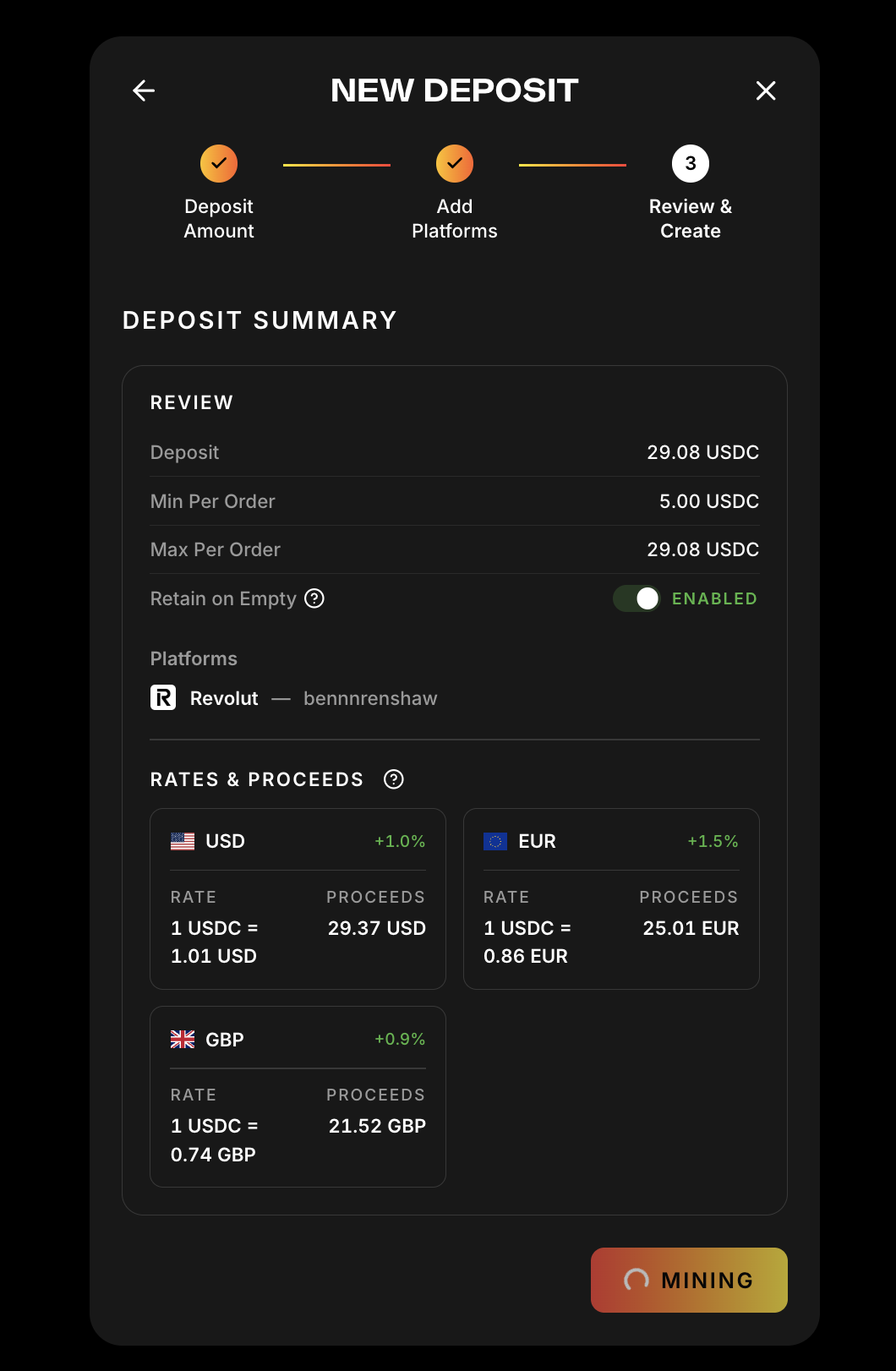
Step 14: Approve & Deposit into Vault
- Click Approve
- After approval, confirm the deposit transaction
- Gas is sponsored if you sign in with Socials
- Wait for confirmation (10–20 seconds)
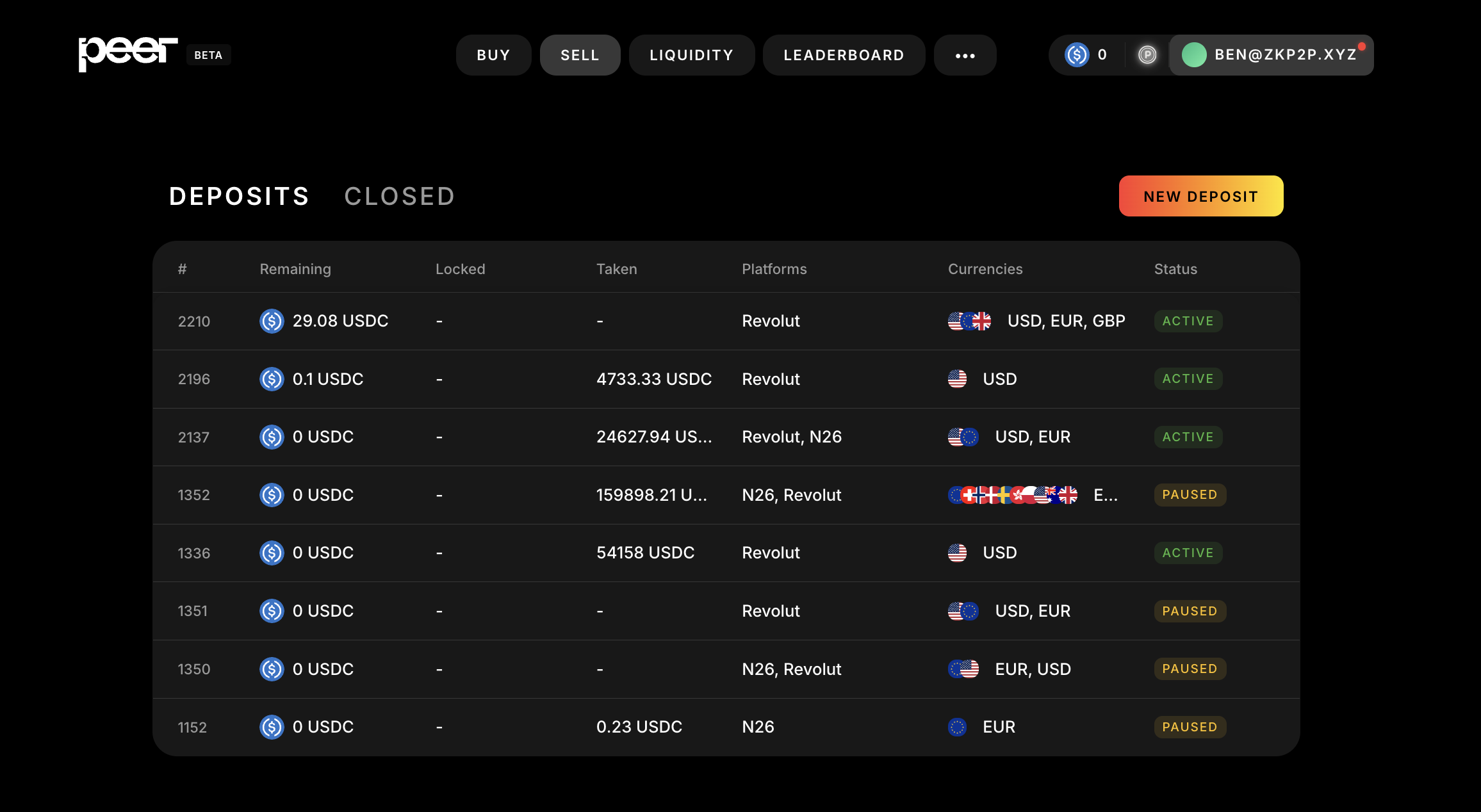
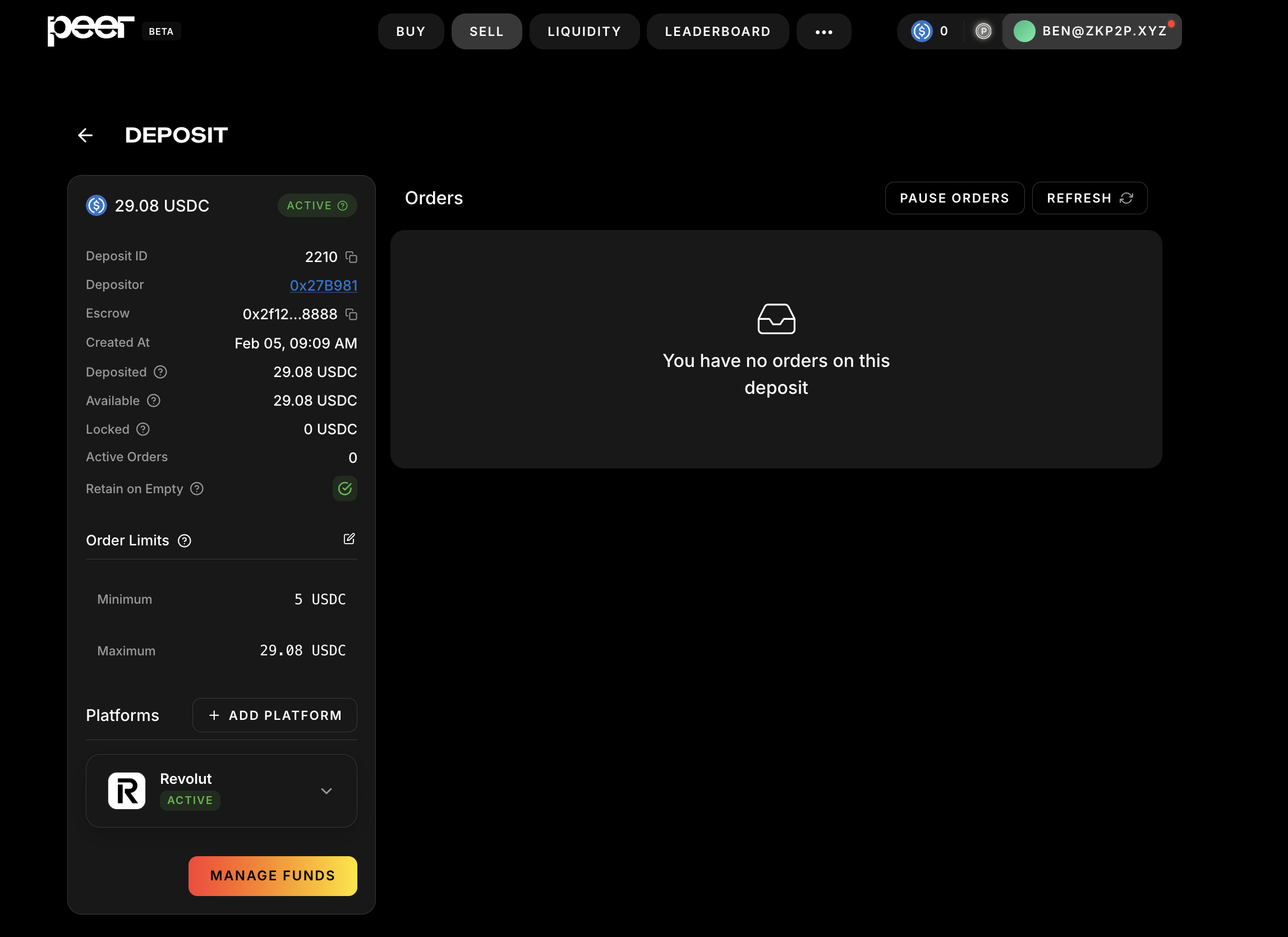
Step 15: Monitor Your Deposit
- Go to the Sell tab
- You’ll see your active deposit showing:
- Total amount
- Remaining balance
- Accepted currencies/platforms
- Current status
💡 Important Tips
Setting Optimal Rates
- Check the Spread column in the Liquidity tab
- Lower spreads (0.5–1%) = faster fills, less profit
- Higher spreads (1–3%) = slower fills, more profit
Security Best Practices
- Start with a small deposit
- Never share your wallet seed phrase
- Always double-check transaction details
- Use separate payment accounts for ZKP2P for clean tracking
Troubleshooting
- Long pending? Check gas — you need ETH on Base
- Deposit not appearing? Refresh or reconnect wallet
- Still stuck? Join Peer Telegram for help
- Want order alerts? Set them up in Notifications and Alerts
➡️ Next: How to Update USDC Conversion Rates